
If your CAPTCHA isn’t showing up on your website, the problem is often due to incorrect implementation, script loading issues, or conflicts with other resources. CAPTCHAs rely on client-side scripts and server validation, so if any piece is missing or blocked, the challenge won’t appear for users. Common reasons include missing API keys, JavaScript errors, browser restrictions, or firewall settings that block CAPTCHA content. Identifying the root cause requires examining your setup and error logs to restore proper CAPTCHA functionality.
Understanding Why CAPTCHAs Fail to Display
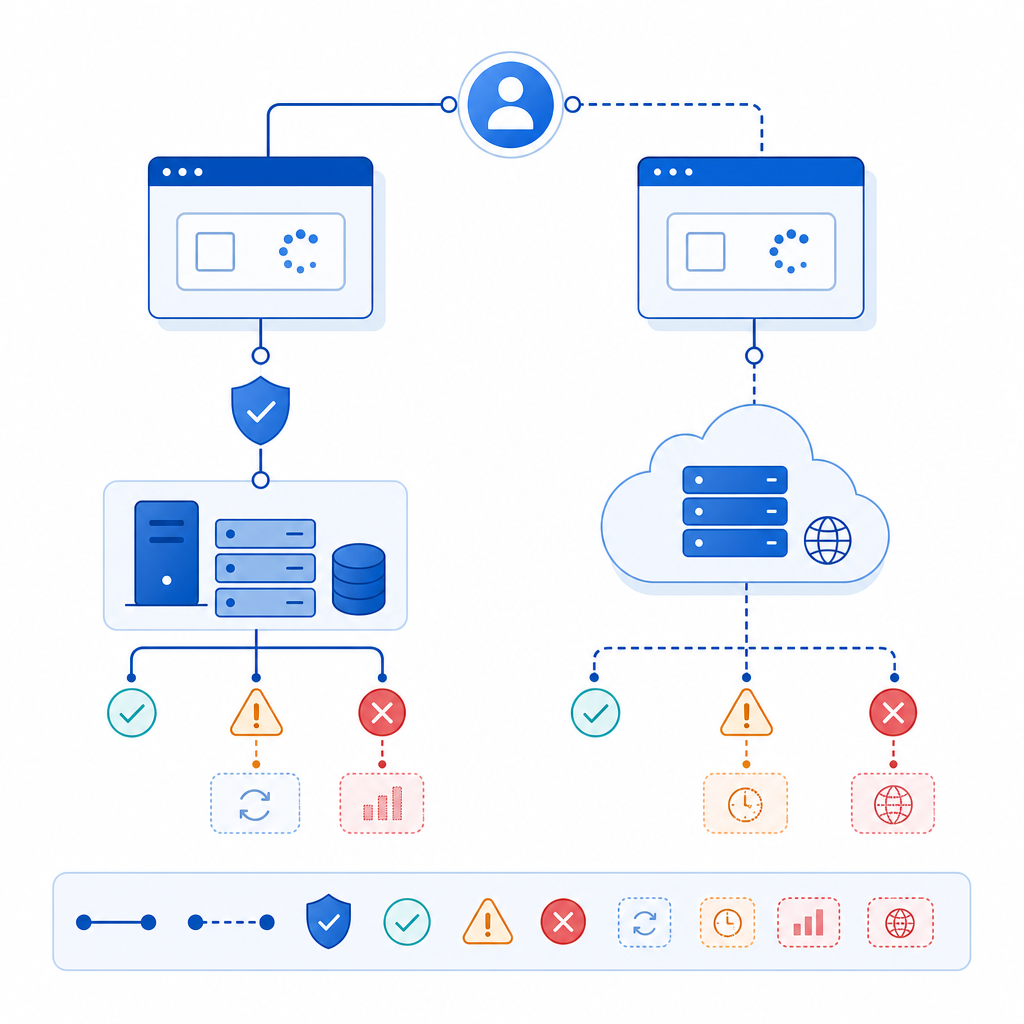
When a CAPTCHA fails to render, it leaves your site vulnerable to bots and malicious traffic. To ensure robust defense, it’s critical to diagnose the exact cause of the failure. Here are some key areas to consider:
1. JavaScript and Resource Loading Errors
CAPTCHAs like CaptchaLa, reCAPTCHA, hCaptcha, and Cloudflare Turnstile depend heavily on external JavaScript files and API calls. If these resources fail to load, the CAPTCHA widget won’t initialize:
- Missing or incorrect script tags (e.g.
<script src="..."></script>) - Content Security Policy (CSP) blocking external scripts
- Network errors due to firewall or proxy restrictions
- Slow or incomplete loading of CDN-hosted files
Use browser developer tools (Console & Network tabs) to spot errors like “Failed to load resource” or JavaScript exceptions.
2. Incorrect API Keys or Credentials
Most CAPTCHA providers require site-specific API keys or secrets to enable and validate the widget. Using invalid or expired credentials prevents display or verification steps.
For example, CaptchaLa’s validation involves sending a POST to https://apiv1.captcha.la/v1/validate with the correct X-App-Key and X-App-Secret. If these values are missing or invalid, the client will not receive the token necessary to show the challenge.
3. Browser or User-Agent Blocking
Certain browser privacy settings, ad blockers, or script-blocking extensions may interfere with CAPTCHA scripts. Some users or networks may have aggressive firewalls that block scripts loaded from third-party domains.
It’s worth testing the CAPTCHA in a clean browser profile or incognito mode without extensions to isolate these issues.
4. Integration Mistakes and DOM Placement
Incorrect placement of the CAPTCHA container in your HTML markup, or failure to call the CAPTCHA initialization function properly, will prevent it from rendering. For instance, if you forget to invoke the CaptchaLa loader or don’t specify the container’s ID correctly, the widget remains invisible.
Especially with frameworks like React, Vue, or Flutter, remember to use the native SDKs or wrappers provided by CAPTCHA services rather than manual script injection, to avoid timing and reactivity issues.

Troubleshooting Steps to Fix “Captcha Not Showing Up”
Identifying the root cause is easier with a methodical checklist:
Check Your Console for Errors
Open Developer Tools → Console, and see if JS errors or resource loading issues appear.Verify Script Tags and URLs
Confirm your page includes the correct CAPTCHA loader script. For CaptchaLa, it’s:html<script src="https://cdn.captcha-cdn.net/captchala-loader.js"></script>Also ensure API endpoints and keys match your dashboard settings.
Inspect Network Requests
Use the Network tab to see if CAPTCHA resources return 200 OK status and are not blocked.Confirm API Credentials
Double-check your app keys and secrets. For example, ensure your POST validation calls include headers:js// Example: validating CaptchaLa token server-side (pseudo-code) const response = await fetch('https://apiv1.captcha.la/v1/validate', { method: 'POST', headers: { 'X-App-Key': 'your-app-key', 'X-App-Secret': 'your-app-secret', 'Content-Type': 'application/json' }, body: JSON.stringify({pass_token, client_ip}) });Test on Different Browsers and Networks
Try loading your site in incognito mode or different devices to rule out user-specific blocking.Use Native SDKs Where Possible
For frameworks like React or Vue, use CaptchaLa’s native SDKs to minimize integration errors. For example, the Vue SDK:vue<template> <captchala-widget app-key="your-app-key" @verified="onVerified" /> </template>Review Content Security Policies (CSP)
If your site uses CSP headers, whitelist scripts and domains needed for the CAPTCHA service (e.g., cdn.captcha-cdn.net).
Comparing Popular CAPTCHA Providers and Integration Complexity
Here’s a quick overview comparing reCAPTCHA, hCaptcha, Cloudflare Turnstile, and CaptchaLa regarding ease of use and common causes of the CAPTCHA not showing up:
| Provider | Script Source & Setup | Key Common Issues | Available SDKs/Platforms |
|---|---|---|---|
| reCAPTCHA | Google-hosted JS, site and secret keys | API misuse, CSP blocking google domains | Web (JS), limited native app support |
| hCaptcha | Dedicated hosted JS, sitekey required | Network errors, ad blockers blocking domains | Web, some SDKs but less mobile-focused |
| Cloudflare Turnstile | Cloudflare js, no captcha key, easier config | Network policies blocking cloudflare scripts | Basic Web SDK, less customizable |
| CaptchaLa | CDN JS loader, app-key and secret headers | Incorrect app keys, missing native SDK integration | Web (JS/Vue/React), iOS, Android, Flutter, Electron |
If your CAPTCHA is still not showing up despite basic checks, switching to a CAPTCHA provider with native SDKs fitting your technology stack (like CaptchaLa’s multi-lingual, cross-platform support) can help minimize integration issues.
Wrapping Up
CAPTCHA not showing up issues are usually rooted in loading errors, API credentials, or script conflicts. Validation and token exchange failures can also prevent the challenge from rendering. By carefully checking your front-end console, network traffic, and back-end validation requests, you can diagnose these problems effectively.
Using a CAPTCHA service with good documentation and SDKs across platforms, such as CaptchaLa, helps avoid many common pitfalls faced by developers integrating bot defense into websites and apps. Explore the docs for detailed integration guides or review pricing tiers to fit your needs.
Where to go next: double-check your implementation with the checklist above, then visit CaptchaLa’s developer resources to streamline your bot defense integration.