
If your CAPTCHA is not showing in Chrome, it usually boils down to browser security settings, network issues, or script loading problems. CAPTCHA elements rely heavily on JavaScript and proper client-server communication, so any blocking of scripts, cookies, or mixed-content warnings can cause the widget to fail to render. Luckily, there are several clear steps to diagnose what’s going wrong and get your CAPTCHA working again.
Understanding Why CAPTCHA Often Fails to Load in Chrome
Chrome, as one of the most popular browsers, takes security seriously. It blocks potentially unsafe or mixed-content elements by default and increasingly enforces strict privacy controls. This makes it easy for CAPTCHA scripts—like those from reCAPTCHA, hCaptcha, Cloudflare Turnstile, or CaptchaLa—to be inadvertently blocked if certain conditions aren't met.
Some of the most frequent causes include:
- Third-party cookie blocking: Many CAPTCHA providers use cookies for session validation. If Chrome blocks those cookies (especially in incognito or strict privacy mode), CAPTCHA may not appear.
- Ad blockers or privacy extensions: Extensions designed to block trackers or ads sometimes block CAPTCHA scripts as “third-party trackers.”
- Mixed Content Warnings: Loading CAPTCHA over HTTP on an HTTPS site, or vice versa, causes Chrome to block the widget for security.
- JavaScript loading errors: Network issues or CSP (Content Security Policy) settings can prevent essential CAPTCHA scripts from executing.
- Network latency and timeout: Slow or unreliable connections can cause script loading or token validation to fail silently.
Since CAPTCHA functionality is critical for user validation and bot defense, troubleshooting these causes helps ensure smooth user experiences.

Common Fixes for CAPTCHA Not Showing in Chrome
1. Verify HTTPS and Content Security Policy (CSP)
Make sure your website and CAPTCHA scripts load entirely over HTTPS. Chrome blocks “mixed content” by default, so any HTTP resource on an HTTPS page will cause issues. Also, if you have strict CSP rules, include the CAPTCHA provider domains explicitly to allow script loading.
Example CSP directive for CaptchaLa:
Content-Security-Policy:
  script-src 'self' https://cdn.captcha-cdn.net https://apiv1.captcha.la;
  frame-src https://captcha.la https://apiv1.captcha.la;
2. Check Browser Cookie Settings
Chrome blocks third-party cookies by default in some modes. CAPTCHA solutions requiring cookies to store session or token data may fail to render.
You can advise users to:
- Enable third-party cookies temporarily on your site.
- Add your domain and CAPTCHA domains as exceptions via Chrome’s Privacy Settings.
3. Disable or Configure Ad Blockers and Privacy Extensions
Extensions like uBlock Origin, Ghostery, and Privacy Badger often block CAPTCHA requests. Test disabling these extensions in Chrome or configure them to whitelist your site and CAPTCHA domains.
4. Inspect JavaScript Errors and Network Failures
Open Chrome DevTools (F12 > Console, Network tabs) on your CAPTCHA page.
- Look for script errors, failed resource loads, or blocked requests.
- Ensure that scripts for CaptchaLa (
https://cdn.captcha-cdn.net/captchala-loader.js) or other providers are loading without error. - Verify POST requests for challenge issuance and validation complete successfully.
5. Review Integration Code & Implementation
Ensure your CAPTCHA embedding code matches the provider’s documentation precisely. For example, with CaptchaLa’s JavaScript SDK, correctly including the loader and initiating the widget is critical.
A minimal HTML example to load CaptchaLa:
<script src="https://cdn.captcha-cdn.net/captchala-loader.js"></script>
<div id="captchala-container"></div>
<script>
  // Initialize CaptchaLa widget
  Captchala.render('captchala-container', {
    siteKey: 'your-site-key'
  });
</script>
Make sure your API keys, tokens, and client IP restrictions align with your server calls.
6. Compare Major CAPTCHA Providers on Compatibility
| Feature | CaptchaLa | reCAPTCHA | hCaptcha | Cloudflare Turnstile |
|---|---|---|---|---|
| Standalone SDKs | Web, iOS, Android, Flutter, Electron | Web only | Web only | Web only |
| Number of UI Languages | 8 | 30+ | 18+ | Limited |
| Server SDKs | PHP, Go | No official SDKs | Some third-party | No official SDKs |
| Privacy | First-party data only | Collects broader data | GDPR compliant | Minimal data collection |
| Free Tier | 1000 attempts/month | Unlimited but usage-based | Basic free tier | Included with Cloudflare |
This table helps to understand integration complexity and possible causes for failures in Chrome depending on your chosen CAPTCHA provider.
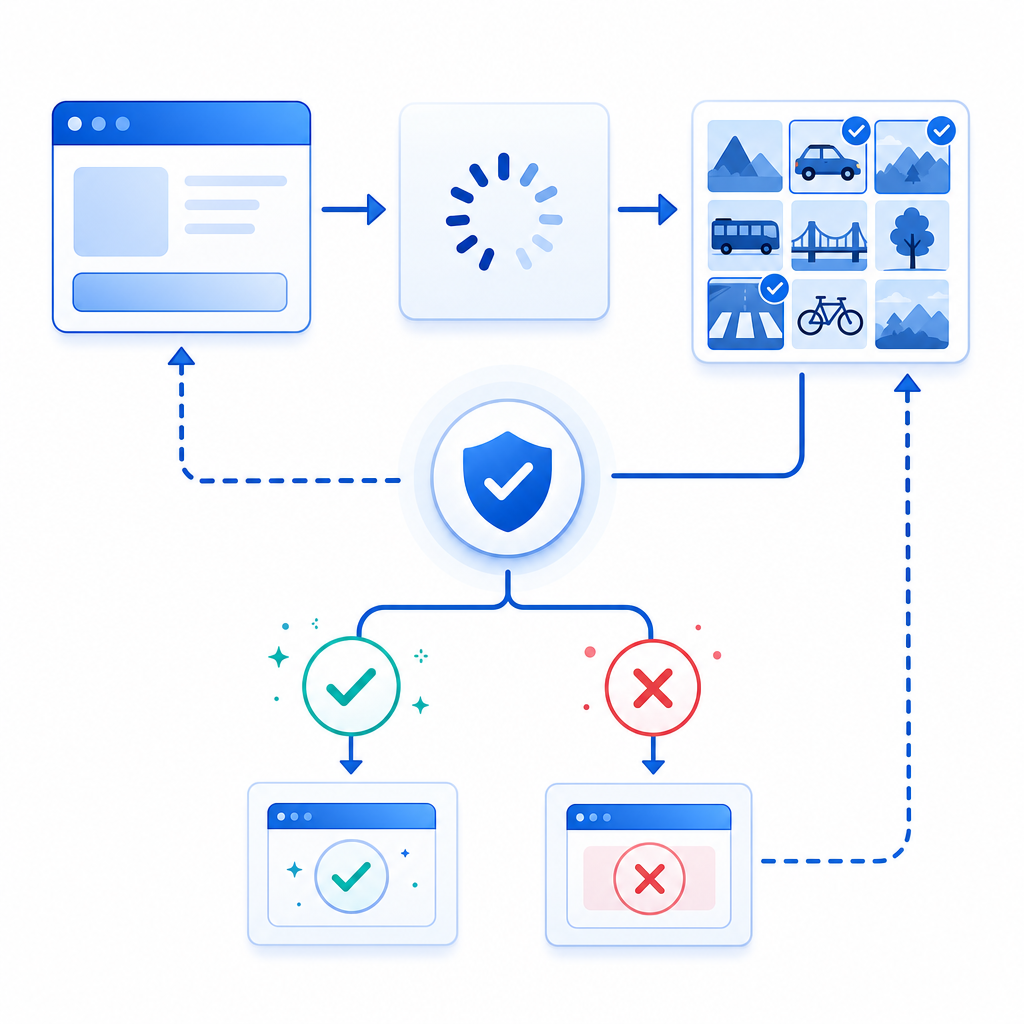
Additional Tips to Prevent CAPTCHA Display Issues
- Always test CAPTCHA on multiple devices and Chrome profiles to catch environment-specific blocks.
- Monitor network latency and implement retries in your CAPTCHA validation logic.
- Use CaptchaLa’s server-side SDKs (
captchala-php,captchala-go) to handle token validation securely and robustly. - Keep your CAPTCHA library versions up to date; for CaptchaLa, the latest Maven and CocoaPods releases ensure better browser compatibility.
Conclusion
When CAPTCHA doesn’t show in Chrome, it’s almost always related to browser security settings blocking scripts or cookies, mixed content warnings, or misconfiguration in your CAPTCHA integration. By systematically checking HTTPS compliance, cookie policies, content security policy headers, extension conflicts, and JavaScript/network errors, you can often resolve the issue swiftly.
If you use CaptchaLa, make sure to follow the precise integration instructions in the docs and leverage server-side validation to ensure reliable performance. CaptchaLa’s SDKs and clean APIs are designed to minimize these friction points, although no CAPTCHA system is immune to browser security tightening trends.
Where to go next? Check CaptchaLa’s pricing and detailed docs for guidance on implementing a robust bot defense that works smoothly across browsers, including Chrome.