
If battlenet captcha not working, the fastest path is to rule out three things: browser state, network interference, and a challenge flow that’s being blocked before it can finish. In practice, most failures come from cookies or scripts being blocked, aggressive privacy extensions, VPN/proxy filtering, or a mismatch between the site’s challenge token and the request context. If you’re on the defender side, the right fix is to make the verification path simpler, more observable, and less dependent on fragile client-side assumptions.
A CAPTCHA is only as reliable as the path between the loader, the browser, and the validation endpoint. If one of those pieces is stale or interrupted, users see a loop, a blank widget, or a “try again” message that never clears. For defenders, that means the issue isn’t always “bad bots” or “bad users” — sometimes it’s an integration problem that looks like a user problem.
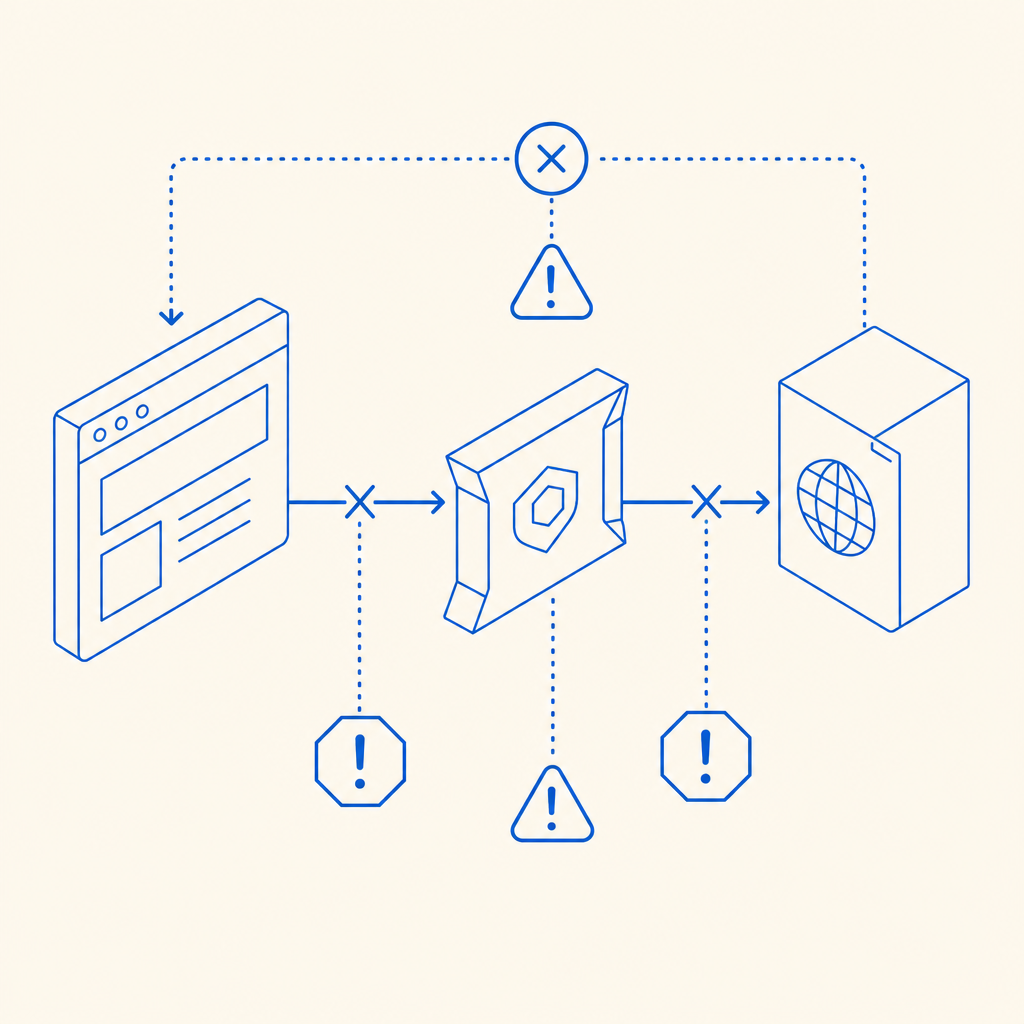
What usually causes a CAPTCHA to fail
When a CAPTCHA stops working, the root cause is often one of a handful of technical mismatches. On the client side, JavaScript may not load, third-party cookies may be blocked, or a privacy tool may strip the challenge request. On the network side, a VPN, corporate firewall, or DNS filter may block the loader or validation call. On the server side, expired tokens, clock skew, or a missing IP context can make a legitimate pass look invalid.
Here’s a practical comparison of common CAPTCHA stacks and where they tend to fail:
| System | Typical failure point | Defender note |
|---|---|---|
| reCAPTCHA | Third-party script blocking, privacy restrictions | Strong ecosystem, but dependencies can be noisy in locked-down browsers |
| hCaptcha | Script loading and challenge rendering | Often comparable operationally, still sensitive to browser/privacy settings |
| Cloudflare Turnstile | Network filtering and page integration | Usually smoother, but can fail if the page blocks its script or cookies |
| Custom CAPTCHA flow | Token validation and server-side checks | Most flexible, but needs careful observability and token handling |
For operators, the key point is simple: the more opaque the challenge flow, the harder it is to tell whether the problem is user environment, client rendering, or server validation.
A step-by-step troubleshooting path
If you’re dealing with a user report, use a repeatable sequence instead of guessing. That makes it much easier to separate real service issues from isolated browser problems.
Check the browser first
- Disable extensions that modify scripts, privacy, or DNS.
- Try a private window.
- Clear site data for the domain.
- Confirm JavaScript is enabled.
Remove network variables
- Disconnect VPN or proxy.
- Try a different network, ideally mobile hotspot.
- If you’re on a corporate network, check for web filtering or TLS inspection.
Confirm the challenge actually loaded
- Open DevTools and look for blocked requests to the loader or validation endpoint.
- Verify there are no 4xx/5xx responses on challenge assets.
- Check whether the token appears in the expected response path.
Inspect token handling
- Make sure the pass token is sent to the server immediately after the challenge is solved.
- Ensure the server validates the token once, not multiple times.
- Confirm the validation request includes the client IP if your risk model expects it.
Verify backend credentials and endpoint correctness
- Use the right app key/secret pair.
- Confirm the challenge and validate endpoints match your integration version.
- Watch for environment mix-ups between staging and production.
A defender can also log these points explicitly. For example, if you record whether the loader loaded, whether the challenge was solved, and whether validation succeeded, you can tell the difference between “challenge failed to render” and “challenge rendered but token was rejected.”
# English comments only

# 1. Load challenge script
# 2. Render challenge widget
# 3. Receive pass_token from client
# 4. Send pass_token and client_ip to validation API
# 5. Accept or reject based on validation response
# 6. Log each step for debugging
What a healthy integration looks like
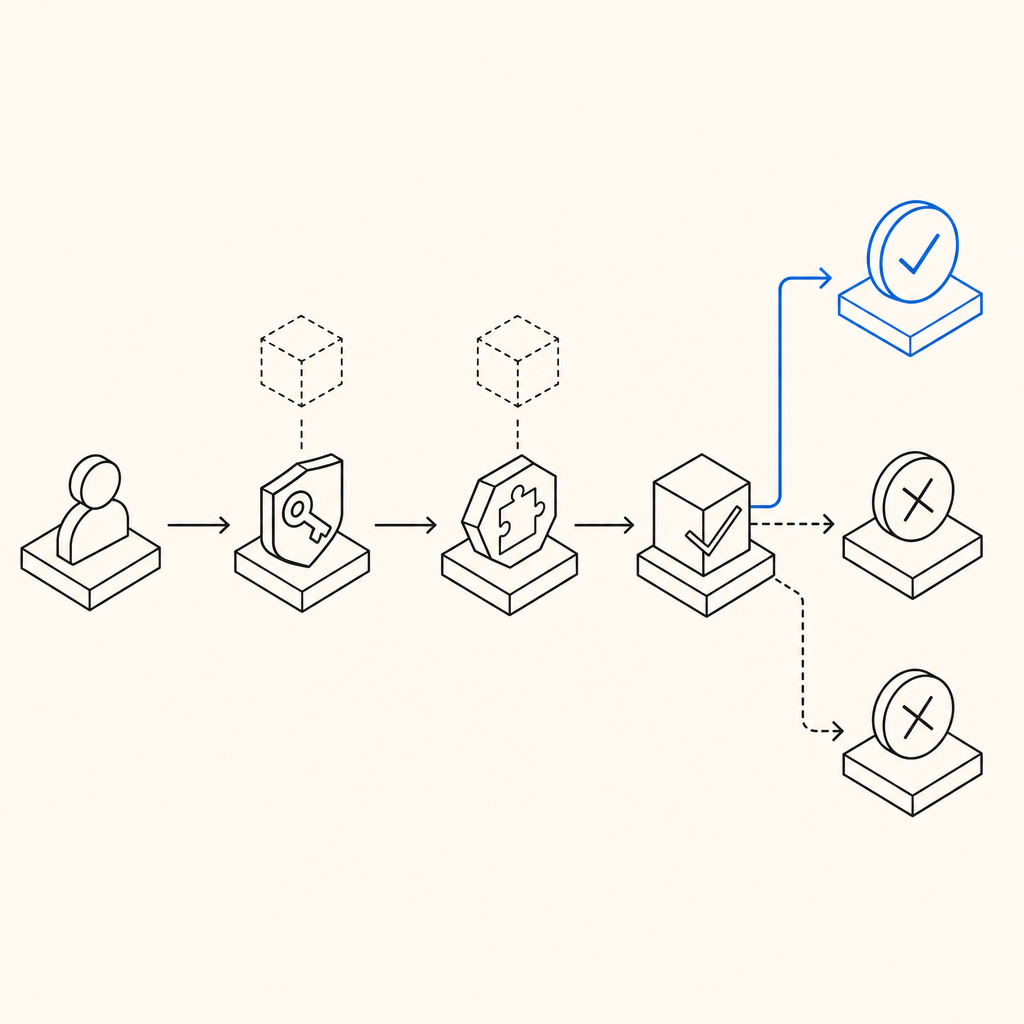
A stable CAPTCHA flow is mostly about consistency. The loader should be easy to fetch, the challenge should render in a predictable place, and server validation should be a single authoritative decision. CaptchaLa’s integration model is a good example of that approach: it supports 8 UI languages, native SDKs for Web (JS, Vue, React), iOS, Android, Flutter, and Electron, plus server SDKs like captchala-php and captchala-go.
On the server side, the validation pattern is straightforward:
- Client solves the challenge and receives a
pass_token - Your backend posts to
https://apiv1.captcha.la/v1/validate - Request body includes
{pass_token, client_ip} - Authenticate with
X-App-KeyandX-App-Secret
For server-initiated challenge issuance, the endpoint is:
POST https://apiv1.captcha.la/v1/server/challenge/issue
And the loader is hosted at:
https://cdn.captcha-cdn.net/captchala-loader.js
This matters because many “captcha not working” complaints come from fragmented ownership. If the frontend team owns rendering and the backend team owns validation, both sides need the same contract. That contract should be documented, tested, and monitored.
Defender-side logging checklist
A clean log line can save hours. At minimum, capture:
- Timestamp
- Session or request ID
- Client IP
- Challenge load status
- Token issuance status
- Validation response code
- User agent string
- Referrer or page path
If you have to reproduce a failure, a structured record is better than a vague “it didn’t work” ticket. This is also where products like CaptchaLa can help by keeping the flow explicit and easier to validate across devices.
When the problem is really anti-bot friction
Sometimes the complaint “battlenet captcha not working” is really “the anti-bot stack is too strict for my environment.” That can happen when risk scoring is tied too heavily to browser fingerprinting, IP reputation, or a challenge cadence that’s unfriendly to real users behind shared networks.
A few defender adjustments can reduce false failures without opening the door to abuse:
- Use layered checks. Don’t rely on one signal alone.
- Make the fallback path visible. If a challenge fails to load, present a clear retry flow.
- Avoid token reuse. One token, one validation.
- Keep validation synchronous enough. Long delays create stale tokens and user retries.
- Test on real networks. Corporate Wi‑Fi, mobile data, and privacy-hardened browsers all behave differently.
CaptchaLa’s pricing tiers are also useful to keep in mind when planning rollout and volume: a Free tier at 1,000/month, Pro at 50K–200K, and Business at 1M. If you’re evaluating challenges at scale, the most important question is not just cost — it’s whether the verification path stays reliable under real traffic patterns and only uses first-party data.
A quick diagnostic matrix
If you want a fast triage view, use this simplified map:
| Symptom | Likely cause | What to test |
|---|---|---|
| Blank widget | Script blocked or CSP issue | Check loader request and Content Security Policy |
| Endless retry | Token not reaching backend or invalidated | Inspect validation payload and response |
| Works on mobile, not desktop | Extension or privacy tool interference | Try clean browser profile |
| Fails on corporate network | Proxy/DNS/TLS inspection | Test off-network |
| Randomly fails after deploy | Endpoint mismatch or config drift | Compare staging vs production keys and URLs |
The goal isn’t to memorize every failure mode. It’s to build a flow where failures are explainable. Once you can answer “did the challenge load, did the user solve it, did the backend accept it?” the mystery usually disappears.
Where to go next: if you’re refining your CAPTCHA flow or troubleshooting a production integration, start with the docs or review pricing for rollout planning.