
When you see anti bot verification failed, it usually means the client, server, or token validation step broke somewhere in the protection flow. The good news: this is almost always diagnosable. In practice, the failure is usually caused by one of four things: an expired or reused token, a mismatch between frontend and backend configuration, a network or script-loading issue, or a validation call that never reaches the server in the expected format.
What the error usually means
“Verification failed” is not one single condition. It’s a generic outcome that can hide several specific problems, so the first step is to separate the symptom from the cause.
At a high level, a bot-defense flow typically looks like this:
- The user loads a challenge widget or loader script.
- The client completes a challenge and receives a pass token.
- Your backend validates that token with the verification API.
- Your app allows or denies the request based on the validation result.
If any step is malformed, delayed, replayed, or configured against the wrong environment, the result can look like an “anti bot verification failed” message to users. That’s why debugging should start with the request path, not the message text.
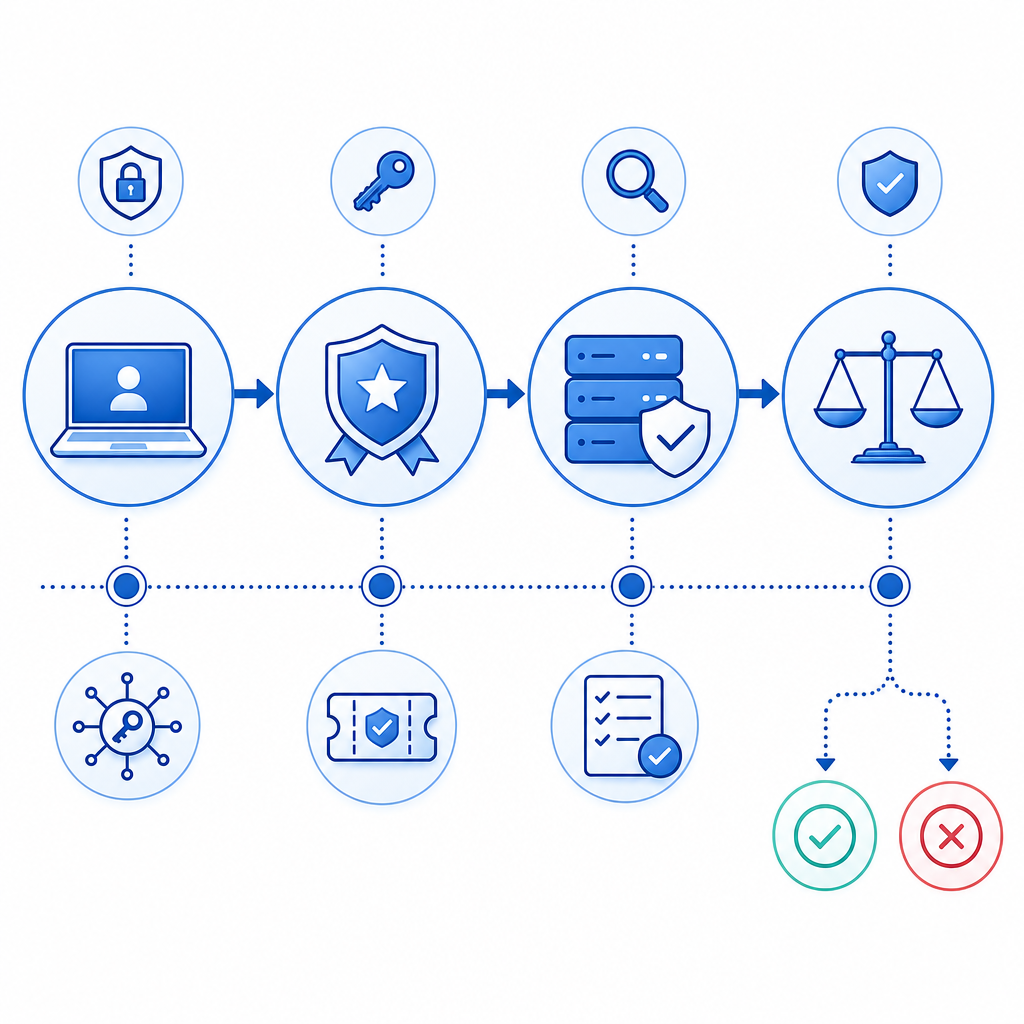
A useful mental model: treat the verification token like a short-lived credential, not a static cookie. Once you think about it that way, the most common failures become much easier to spot.
Common causes and how to diagnose them
Here are the most frequent reasons this error appears, with the quickest checks first.
1) The token is expired, missing, or reused
This is the classic cause. If the token was issued for one session and then submitted later, the backend should reject it. Likewise, reusing the same token across multiple requests can trigger failure.
Check for:
- token timestamps older than your expected TTL
- duplicate submissions from double-clicks or retries
- client-side state that overwrites the latest token
- mobile flows where the challenge completes, but the submit action happens much later
2) Frontend and backend keys do not match
If your site is using one app configuration and your server validates against another, the validation can fail even though the UI looked fine. This often happens in staging vs. production, or when teams rotate secrets in one environment but not the other.
A clean validation request should use the expected headers and body:
# Example validation request
curl -X POST "https://apiv1.captcha.la/v1/validate" \
  -H "Content-Type: application/json" \
  -H "X-App-Key: your_app_key" \
  -H "X-App-Secret: your_app_secret" \
  -d '{
    "pass_token": "token_from_client",
    "client_ip": "203.0.113.10"
  }'
If you use docs, confirm that the server is sending the exact token the client received, and that the IP value is the one your trust model expects.
3) The loader or challenge script never loaded correctly
If the browser never loads the client script, the challenge may fail silently or generate incomplete state. For CaptchaLa, the loader is served from:
https://cdn.captcha-cdn.net/captchala-loader.js
Things to check:
- Content Security Policy blocks on your site
- ad blockers or privacy tools interfering with script delivery
- subresource integrity or caching issues
- script order problems in single-page apps
- network failures on slow or restricted connections
If you support multiple regions or browser policies, test with a clean profile and a production-like CSP. A script that loads in dev but fails under a strict CSP in prod is a very common source of “verification failed” reports.
4) Your backend validation logic is too strict or incomplete
Some teams reject tokens without logging why, which makes the problem look random. Better to validate in stages and record the result of each stage.
A server-side flow can be as simple as:
1. Receive pass_token from client
2. Confirm the token is present and non-empty
3. Send pass_token and client_ip to the validation endpoint
4. Check the API response status
5. Allow the request only if validation passes
If you use CaptchaLa, the relevant server validation endpoint is:
POST https://apiv1.captcha.la/v1/validate
And for challenge issuance there is:
POST https://apiv1.captcha.la/v1/server/challenge/issue
That separation matters because it helps you distinguish between “challenge generation failed” and “token validation failed.”
Quick comparison of common bot-defense flows
| Product | Client experience | Server validation style | Notes |
|---|---|---|---|
| reCAPTCHA | Familiar, widely recognized | Usually server-side verification | Strong ecosystem, but can be opaque when debugging |
| hCaptcha | Similar challenge-based flow | Server-side validation | Often chosen for privacy or publisher control |
| Cloudflare Turnstile | Low-friction and invisible when possible | Server-side token verification | Useful when you already use Cloudflare services |
| CaptchaLa | Challenge + token validation, with SDKs across web and mobile | POST validation with app key/secret | Supports web, iOS, Android, Flutter, Electron, and 8 UI languages |
The exact product matters less than the engineering pattern: challenge, token, verify, log. If you can instrument those stages, you can usually explain the failure within one incident review.
A practical debugging checklist
Use this checklist when the error appears in production or QA.
Confirm the token exists on submit
- Inspect the form payload or API request.
- Verify the token is not empty or stale.
- Make sure retries do not resend the same token after it has already been consumed.
Verify the script actually loaded
- Check browser console errors.
- Confirm the loader URL returned 200.
- Test with CSP, extensions, and private browsing disabled.
Validate the server request shape
- Ensure
pass_tokenis passed as JSON, not form-encoded unless your integration explicitly expects that. - Include
client_ipif your backend policy relies on it. - Send
X-App-KeyandX-App-Secretexactly as configured.
- Ensure
Inspect environment consistency
- Match staging frontend to staging backend.
- Match production frontend to production backend.
- Rotate keys in both places, not one.
Log the API response
- Record status codes.
- Capture error bodies in a safe internal log.
- Correlate failures with user agent, IP, and time.
Test on multiple device types
- Desktop browser
- iOS and Android apps
- Flutter or Electron clients
- Slow mobile networks
For teams using native SDKs, it helps that CaptchaLa supports Web (JS/Vue/React), iOS, Android, Flutter, and Electron, plus server SDKs like captchala-php and captchala-go. That makes it easier to keep the client and server sides aligned without re-implementing the entire flow in each app.
How to prevent the error from recurring
Prevention is mostly about making the verification path observable and boring. The less surprising it is, the fewer false failures you’ll see.
Build for first-party data only
If you rely on first-party data only, your verification logic stays closer to the app boundary and is easier to reason about. That reduces surprises from third-party scripts, cross-domain assumptions, or unclear consent boundaries.
Keep token lifetimes short and explicit
If a token is valid for too long, replay risk goes up. If it is too short, users on slow connections fail unnecessarily. Tune the TTL based on your actual traffic, not just a default.
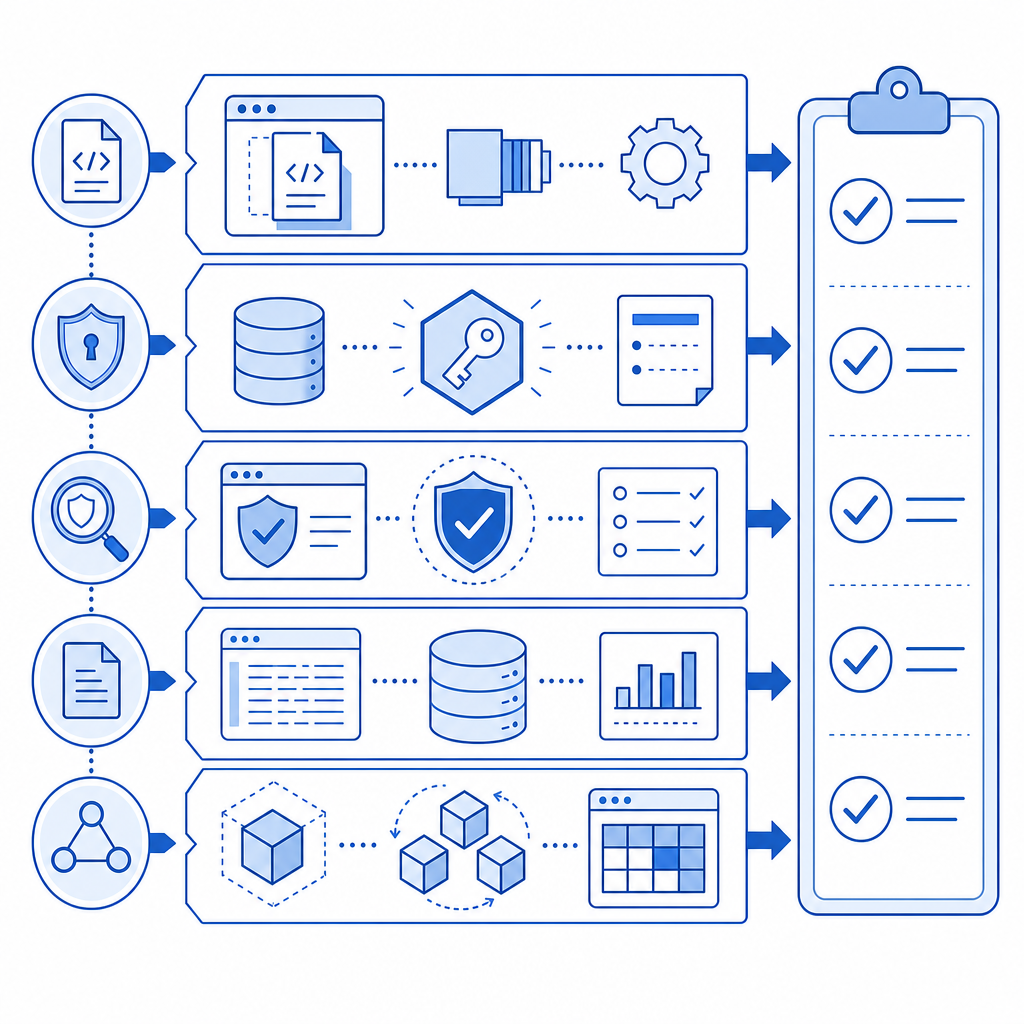
Add structured logging
Log these fields whenever validation fails:
- request ID
- token presence, not the full token
- validation endpoint response code
- client platform
- browser or app version
- environment name
- timestamp
- IP reputation or rate-limit metadata if you already have it
That gives your support or security team enough context to distinguish user friction from actual abuse.
Match the challenge to the risk
Not every page needs the same level of friction. Login, signup, password reset, ticket checkout, and API registration often deserve stricter controls than a newsletter form. If you over-apply the same challenge everywhere, you may increase false failures without improving defense much.
CaptchaLa’s pricing tiers are simple enough to map to traffic growth: free tier at 1000/month, Pro at 50K-200K, and Business at 1M. That’s useful when you want to scale controls gradually instead of overhauling your whole auth or form stack at once. You can review pricing if you are planning capacity.
When to escalate beyond the error message
If the error is isolated to one browser, one app version, or one environment, it is usually a configuration or delivery issue. If it happens broadly across all traffic, then look for a systemic problem such as:
- invalid or rotated secrets
- a broken CDN/script path
- API downtime or timeout handling
- a recent frontend deployment that changed token submission
- a backend release that altered request parsing or header handling
A final tip: keep the user-facing message simple, but make the internal diagnostics precise. Users should see a clear retry path; engineers should see exactly where the flow failed.
Where to go next: if you’re tightening your verification flow or documenting the integration, start with the docs or review pricing to match your expected traffic and deployment needs.