
If you want an advanced nocaptcha & invisible captcha wordpress setup, the short answer is this: use an invisible challenge only where you need it, validate it server-side, and keep the user experience as frictionless as possible without assuming the client can be trusted. For WordPress, that usually means protecting forms, logins, comments, and signup flows with a CAPTCHA system that can run quietly until risk increases, then hand off to a challenge that is still fast enough for real users.
The important part is not whether the widget is “visible” or “invisible” on the page. It’s whether the overall defense strategy fits your traffic, your plugins, and your risk tolerance. WordPress sites often get hit by credential stuffing, spam registrations, contact-form abuse, and scripted checkout probing. A good nocaptcha flow reduces obvious friction for humans while still giving you a reliable signal on the backend.
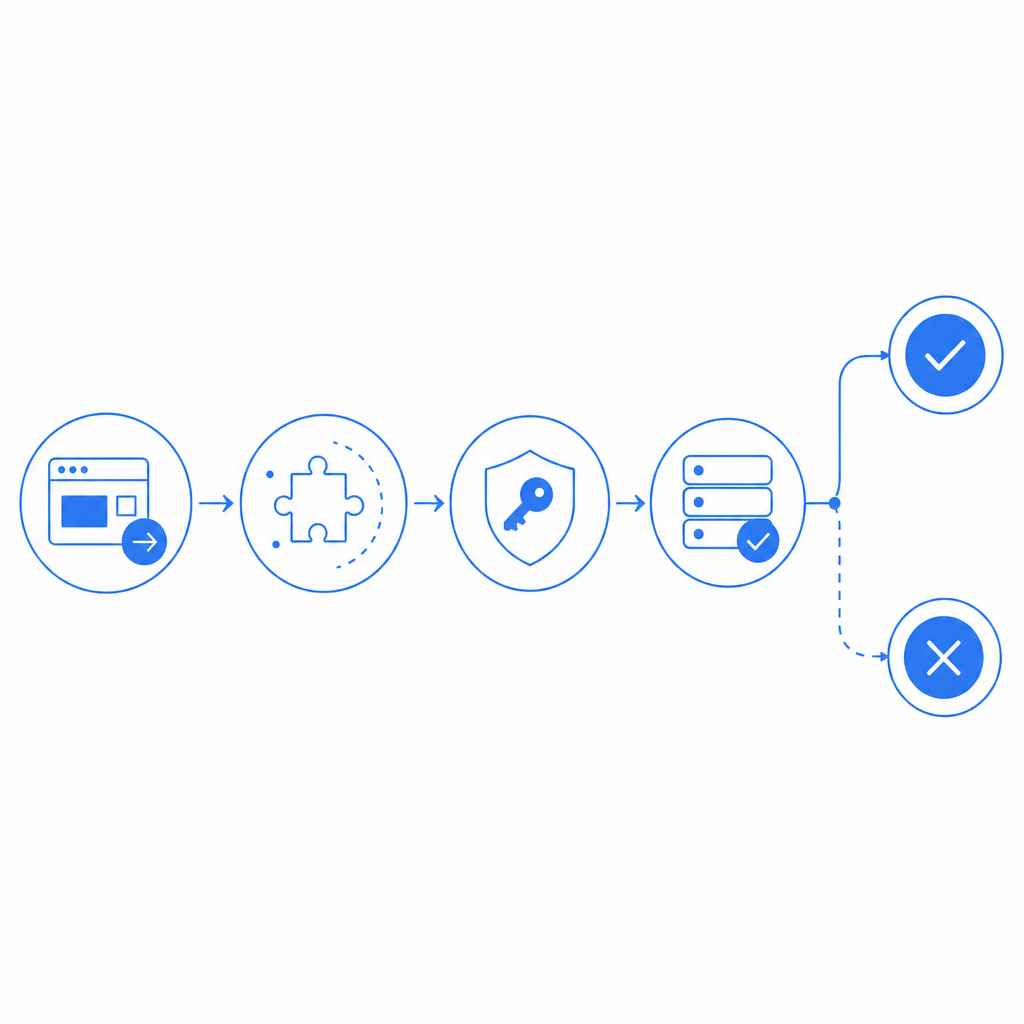
What “invisible” should mean on a WordPress site
“Invisible” does not mean “no security logic.” It means the challenge is deferred, minimized, or only shown when needed. For a WordPress site, that usually maps to one of three patterns:
Fully invisible pass-through with token validation
- The user never sees a challenge unless risk scoring or anomaly detection says they should.
- Useful for low-friction actions like newsletter signup or login on trusted devices.
Adaptive challenge escalation
- Most requests pass quietly.
- Suspicious requests trigger a visible interaction or a harder validation path.
Background verification on submit
- The form loads a lightweight script.
- A token is generated at submit time and verified on the server before WordPress accepts the request.
This is the practical difference between “nocaptcha” as a UX promise and “bot defense” as a security control. The first is about reducing interruptions. The second is about making sure automation can’t freely abuse your forms.
If you’re evaluating options, it helps to compare the common players objectively:
| Option | UX style | Server validation | Typical fit | Notes |
|---|---|---|---|---|
| reCAPTCHA | visible or invisible | yes | broad WordPress use | Widely known, but can add more user friction depending on configuration |
| hCaptcha | visible or invisible | yes | spam and abuse prevention | Often chosen for privacy and anti-bot controls |
| Cloudflare Turnstile | usually invisible | yes | low-friction challenge | Good for reducing friction, especially on forms |
| Custom / embedded CAPTCHA platform | configurable | yes | tailored WordPress flows | Best when you need tighter control over branding, localization, or validation behavior |
For WordPress specifically, the main question is not which brand has the loudest reputation. It’s which one integrates cleanly with your forms, can be verified on your server, and won’t create plugin conflicts.
A WordPress architecture that actually holds up
The safest implementation pattern is simple: the browser requests a challenge token, the server validates it, and WordPress only accepts the form after validation succeeds. That separation matters because client-side checks alone are trivial to spoof.
Here’s the flow I recommend thinking about:
The page loads a loader script
- A lightweight script handles challenge orchestration.
- For CaptchaLa, the loader is hosted at
https://cdn.captcha-cdn.net/captchala-loader.js.
The user completes or bypasses the invisible flow
- Most legitimate users won’t notice anything beyond a quick delay, if anything at all.
- Riskier sessions may trigger more explicit verification.
A pass token is attached to the form submission
- The token is sent with the request, along with the client IP if your implementation uses it.
Your WordPress backend validates the token
- The server sends a POST request to the validation endpoint.
- For CaptchaLa, validation uses
POST https://apiv1.captcha.la/v1/validatewith a body like{pass_token, client_ip}and headersX-App-Key + X-App-Secret.
Only then does WordPress continue
- If validation passes, the form is processed.
- If it fails, block the action and log the event.
That last step is essential. WordPress sites often make the mistake of treating CAPTCHA as a front-end decoration. It should be treated as an authorization checkpoint for the specific action being protected.
Example server-side pattern
<?php
// Example: validate a CAPTCHA token before processing a WordPress form.
// Replace placeholder values with your actual configuration.

$pass_token = $_POST['pass_token'] ?? '';
$client_ip  = $_SERVER['REMOTE_ADDR'] ?? '';

$payload = json_encode([
    'pass_token' => $pass_token,
    'client_ip'  => $client_ip,
]);

$ch = curl_init('https://apiv1.captcha.la/v1/validate');
curl_setopt_array($ch, [
    CURLOPT_POST => true,
    CURLOPT_POSTFIELDS => $payload,
    CURLOPT_RETURNTRANSFER => true,
    CURLOPT_HTTPHEADER => [
        'Content-Type: application/json',
        'X-App-Key: YOUR_APP_KEY',
        'X-App-Secret: YOUR_APP_SECRET',
    ],
]);

$response = curl_exec($ch);
$http_code = curl_getinfo($ch, CURLINFO_HTTP_CODE);
curl_close($ch);

// Check response status before accepting the form submission.
if ($http_code !== 200) {
    wp_die('Verification failed.');
}

// Continue with WordPress form processing here.
That pattern works whether you are protecting login, registration, comments, or a custom form built with a plugin.
Choosing the right mode for your WordPress use case
A lot of implementation pain comes from using one CAPTCHA mode everywhere. Different WordPress endpoints deserve different friction levels.
Login and password reset
These endpoints are prime targets for automation. A good invisible captcha setup here should be strict enough to catch brute-force attempts, but not so aggressive that it locks out legitimate users on mobile or shared networks.
Recommended approach:
- Keep the challenge invisible for normal traffic.
- Escalate on suspicious behavior.
- Pair with rate limiting and failed-login throttling.
Contact and lead-gen forms
These forms usually need a light touch. You want to stop spam submissions without making real prospects work hard.
Recommended approach:
- Use an invisible or near-invisible challenge.
- Validate on submit.
- Add honeypot or field timing checks if your form plugin supports them.
Comments and registrations
These are often spam magnets. If your audience is public-facing, you may need stronger defaults.
Recommended approach:
- Use challenge escalation for first-time or low-trust sessions.
- Consider making the challenge more visible only when the request pattern looks automated.
- Store validation failures for audit, not just rejection.
WooCommerce and checkout-related flows
Checkout friction can hurt conversion, so invisible-first approaches are especially important here. But checkout automation is also a real risk.
Recommended approach:
- Protect account creation, coupon abuse, and suspicious repeat submissions.
- Keep verification lightweight and server-checked.
- Avoid extra page reloads or redirects.
If you want a system that supports multiple surfaces in the same way, CaptchaLa can be useful because it gives you the same validation model across web and app contexts, with SDKs for Web, iOS, Android, Flutter, and Electron, plus server SDKs like captchala-php and captchala-go. That consistency matters when your WordPress site is only one part of a larger product.
Implementation details that reduce headaches
A polished CAPTCHA setup is usually less about the widget itself and more about the plumbing around it. A few technical specifics make a big difference:
Validate server-side every time
- Never trust a token just because it appeared in the browser.
- Confirm the backend response before processing the request.
Bind validation to the action
- A token issued for a newsletter form should not automatically authorize a password reset.
Handle failure gracefully
- Show a clear message.
- Avoid generic “something went wrong” loops.
- Log enough context to debug false positives.
Watch for plugin conflicts
- WordPress form plugins may cache fields, reorder scripts, or delay submission handlers.
- Test with your caching, security, and optimization stack enabled.
Support localization
- If your audience is multilingual, choose a provider that can match the language experience to your site.
- CaptchaLa supports 8 UI languages, which can help if your WordPress audience is global.
Use the smallest effective script footprint
- Load only where needed.
- Don’t put CAPTCHA on every page if only three actions need protection.
For teams comparing plans, it can also help to align volume with traffic profile. CaptchaLa’s published tiers include a free tier at 1,000 monthly requests, Pro at 50K–200K, and Business at 1M. The pricing page is the place to confirm what fits your site and expected peaks: pricing.

A practical WordPress rollout plan
If you’re adding advanced nocaptcha & invisible captcha wordpress protection to an existing site, roll it out in stages rather than flipping every form at once.
Start with one high-risk endpoint
- Login or registration is usually the clearest place to begin.
- Measure false positives before expanding coverage.
Add server validation logs
- Track failed validation, suspicious bursts, and plugin-level errors.
- This helps separate CAPTCHA issues from broader abuse patterns.
Test with real browsers and real network conditions
- Mobile data, browser privacy extensions, and aggressive caching can change behavior.
- Don’t rely only on a local dev sandbox.
Tune escalation thresholds
- If you can challenge based on behavior, start conservatively.
- Raise friction only when the data justifies it.
Document the fallback path
- If the CAPTCHA service is unavailable, decide whether to fail closed or allow limited submissions.
- Different sites make different tradeoffs here.
If you want implementation references rather than guesswork, the docs are the right next stop for request formats and integration patterns. The key thing to remember is that invisible does not mean automatic. It means carefully controlled, especially on a platform like WordPress where many plugins and user flows intersect.
Where to go next: review the integration docs, map your protected forms, and decide which flows deserve invisible verification versus explicit challenge. If you’re still choosing a plan, the pricing page is the simplest place to compare request volumes and fit.