
If you want to add captcha to wordpress website, the short answer is: choose a CAPTCHA provider, place the widget on the forms you care about, and verify submissions server-side so bots can’t simply bypass the browser layer. The exact implementation depends on whether you’re protecting login, registration, comments, checkout, or a custom form, but the core pattern is the same.
For WordPress, that usually means one of three paths: a plugin that already supports your CAPTCHA provider, a custom form integration, or a lightweight theme/plugin hook for login and registration screens. The best option is the one that fits your stack without turning routine form handling into a maintenance project.

What you should protect first
Not every WordPress form needs the same level of friction. Start with the entry points that attract automated abuse, then expand from there.
- Login form — targets credential stuffing and repeated brute-force attempts.
- Registration form — often hit by fake account creation and inbox spam.
- Password reset form — can be used for enumeration and abuse.
- Comments and contact forms — classic spam magnets.
- Checkout or lead forms — important when bots create noise, false leads, or payment risk.
A good rule is to protect wherever a bot can create cost, noise, or trust issues. If your site uses WooCommerce, membership plugins, or page-builder forms, check whether those tools already have a CAPTCHA extension before you write custom code.
It also helps to think about the user experience. A visible challenge on every page can add friction, while a risk-based or server-validated flow can keep honest users moving. Providers like CaptchaLa are designed for first-party data handling, which is useful if you want to keep the integration tight and predictable.
The three main ways to add CAPTCHA in WordPress
There isn’t one universal WordPress method, so it helps to compare the common approaches.
| Approach | Good for | Pros | Tradeoffs |
|---|---|---|---|
| Plugin integration | Standard forms, fast setup | Low code, quick rollout | Limited to supported plugins |
| Custom form hooks | Bespoke forms, theme development | Full control | Requires PHP and JavaScript work |
| Server-side validation | Higher assurance | Harder to bypass | Needs backend changes |
1) Plugin-based integration
This is the simplest path when your plugin ecosystem already supports a CAPTCHA provider. Many WordPress form plugins expose a CAPTCHA field or verification toggle. If your stack supports it, you can often configure keys in the admin panel and be done in minutes.
This works well for:
- Contact Form 7
- Gravity Forms
- WPForms
- WooCommerce login and registration add-ons
- Membership plugins with custom hooks
If you’re evaluating providers, compare how they fit your forms, how they validate tokens, and whether they support the languages and SDKs your broader app uses. CaptchaLa, for example, offers web SDKs for JS, Vue, and React, plus iOS, Android, Flutter, and Electron support, which is handy if your WordPress site is part of a larger product stack.
2) Custom integration for WordPress forms
If your form is custom-built, you’ll usually place the widget or loader on the frontend and send the token with the form data. Then your server checks that token before accepting the submission.
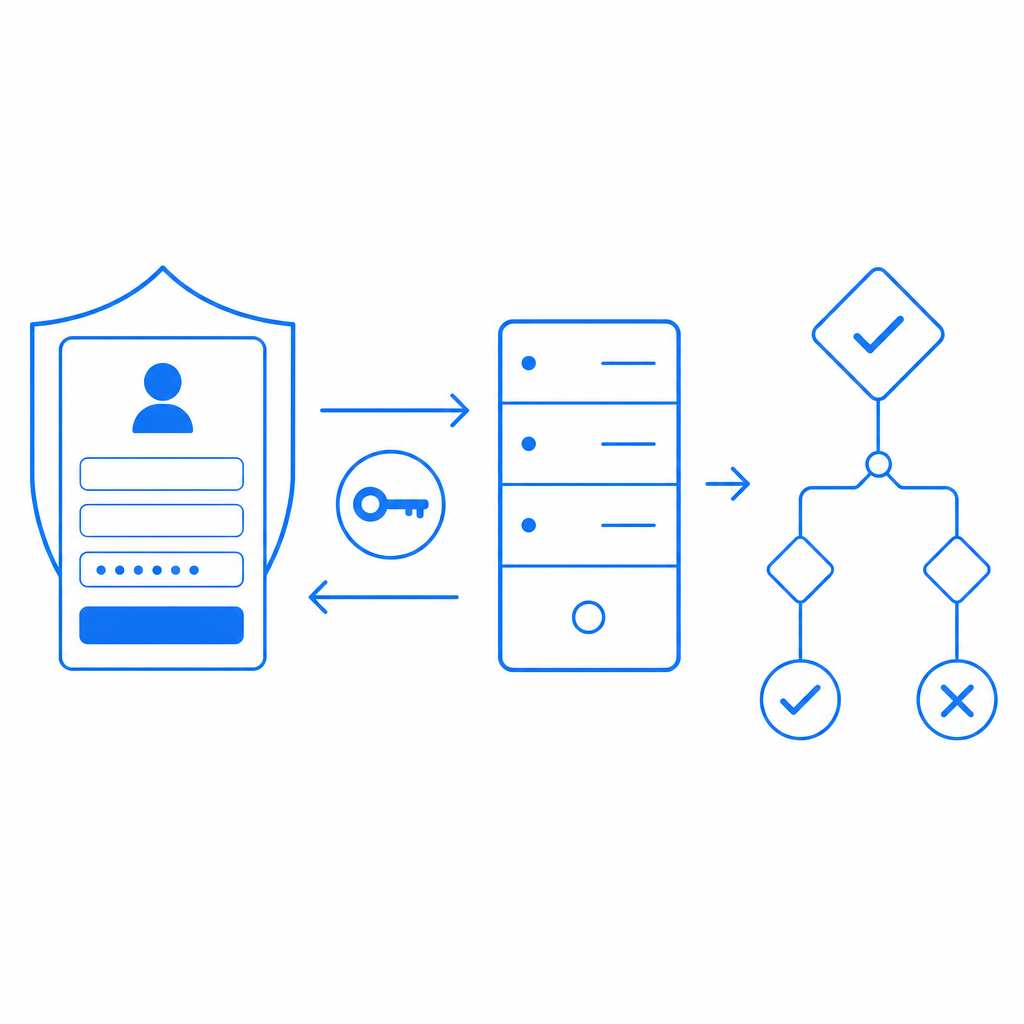
A typical flow looks like this:
- Load the CAPTCHA script on the page.
- Render the challenge or widget near the form submit button.
- On submit, include the returned
pass_token. - Send the submission to your server.
- Validate the token with your CAPTCHA provider.
- Accept or reject the request based on the validation response.
For CaptchaLa, the browser loader is hosted at:
https://cdn.captcha-cdn.net/captchala-loader.jsThat script handles the client-side challenge experience. On the backend, validation happens by POSTing to:
https://apiv1.captcha.la/v1/validatewith a body that includes:
{
  "pass_token": "token_from_client",
  "client_ip": "203.0.113.10"
}
and headers:
X-App-KeyX-App-Secret
That server check is the important part. Without it, a bot can sometimes replay or fake the client-facing step.
3) WordPress login and registration hooks
If your goal is specifically to harden wp-login.php or the default registration page, you can attach CAPTCHA to the WordPress authentication flow. That usually means hooking into form rendering and submission validation. The exact code depends on the provider, but the structure is consistent:
- add the challenge markup to the login form
- capture the response token in a hidden field
- validate on
wp_authenticateor equivalent submission hooks - block the request if validation fails
This approach is common when you want to protect core WordPress entry points without replacing your forms entirely.
A practical implementation pattern
Below is a simplified example of how a custom WordPress form might pass the token through to the server. The details will vary by plugin or theme, but the pattern is useful.
<?php
// English comments only

function captchala_render_form() {
    ?>
    <form method="post" action="">
        <input type="email" name="email" required>
        <input type="hidden" name="pass_token" id="pass_token">
        <div id="captcha-container"></div>
        <button type="submit">Submit</button>
    </form>

    <script src="https://cdn.captcha-cdn.net/captchala-loader.js"></script>
    <script>
      // Load the CAPTCHA challenge and write the token into the hidden field
      // Replace the config below with your site settings
      window.addEventListener('load', function () {
        // Example only: use your provider's documented render method
        // When the challenge succeeds, store the token for submission
      });
    </script>
    <?php
}

function captchala_handle_form() {
    if (!isset($_POST['pass_token'])) {
        wp_die('Missing CAPTCHA token.');
    }

    $response = wp_remote_post('https://apiv1.captcha.la/v1/validate', [
        'headers' => [
            'X-App-Key' => 'your-app-key',
            'X-App-Secret' => 'your-app-secret',
            'Content-Type' => 'application/json',
        ],
        'body' => wp_json_encode([
            'pass_token' => sanitize_text_field($_POST['pass_token']),
            'client_ip' => $_SERVER['REMOTE_ADDR'] ?? '',
        ]),
        'timeout' => 10,
    ]);

    if (is_wp_error($response)) {
        wp_die('CAPTCHA validation error.');
    }

    $data = json_decode(wp_remote_retrieve_body($response), true);

    if (empty($data['valid'])) {
        wp_die('CAPTCHA failed.');
    }

    // Continue with form processing
}
The important part is that validation happens on the server after the form is submitted. The browser can help collect the challenge response, but the server should make the final decision.
How CaptchaLa compares with common alternatives
WordPress users often compare reCAPTCHA, hCaptcha, and Cloudflare Turnstile. Each has its own strengths, and the right choice depends on your goals.
- reCAPTCHA is widely recognized and supported in many plugins.
- hCaptcha is often chosen for its privacy and bot-challenge posture.
- Cloudflare Turnstile aims for low-friction verification with minimal user interruption.
- CaptchaLa is useful when you want a dedicated CAPTCHA / bot-defense layer with first-party data handling and a clean SDK/story across web and mobile surfaces.
There’s no universal winner here. A high-traffic publishing site may prioritize low friction, while a membership or commerce site may prioritize tighter control and clear server-side validation. If your WordPress site is part of a larger app, it’s worth checking whether your provider also supports non-WordPress clients. CaptchaLa’s server SDKs include captchala-php and captchala-go, and its mobile/desktop support can be useful if the same backend protects multiple surfaces.
CaptchaLa also documents a server-token issuance endpoint:
POST https://apiv1.captcha.la/v1/server/challenge/issueThat can be relevant when you need the server to initiate or coordinate the challenge lifecycle instead of relying entirely on client-side interaction. For setup details, the docs are the right place to verify the exact flow for your use case.
Deployment checklist before you go live
Before enabling CAPTCHA on a live WordPress site, run through a quick checklist so you don’t accidentally block legitimate users.
- Test every protected form in at least one desktop and one mobile browser.
- Confirm token expiry behavior so stale form submissions fail safely.
- Validate on the server only; never trust a client-only pass state.
- Check caching and minification plugins, which can sometimes interfere with script loading.
- Add fallback messaging for failed validation, especially on login and checkout.
- Review rate limits and logging to spot repeated abuse patterns.
- Verify accessibility and localization, especially if you support multiple languages.
CaptchaLa supports 8 UI languages, which is helpful if your site serves international users. If you expect steady abuse pressure, it’s also worth reviewing pricing against your monthly volume so you can choose a tier that fits your traffic pattern, from free usage to higher-volume plans.
Final thoughts
To add captcha to wordpress website successfully, focus less on the visual widget and more on the trust boundary. The browser collects a token; your server decides whether the submission is acceptable. That’s the part that actually stops automation from walking through your forms.
If you’re deciding between plugin convenience and custom control, start with the forms that matter most, validate on the backend, and keep the integration as small as possible. That combination usually gives you the best balance of security and maintenance.
Where to go next: review the implementation details in the docs or compare plans on pricing before you roll it out.