
If you want to add captcha to wordpress login, the practical answer is: protect the login form with a verification step that checks whether the visitor looks like a human before WordPress accepts the attempt. That can be done with a plugin, a custom hook, or an external bot-defense service such as CaptchaLa, depending on how much control you want over the experience and validation flow.
For most sites, the goal is not to make login harder for real users. It is to reduce credential stuffing, brute-force attempts, and scripted noise without creating a support burden. That means choosing a captcha or challenge system that is lightweight, compatible with your stack, and easy to verify server-side.
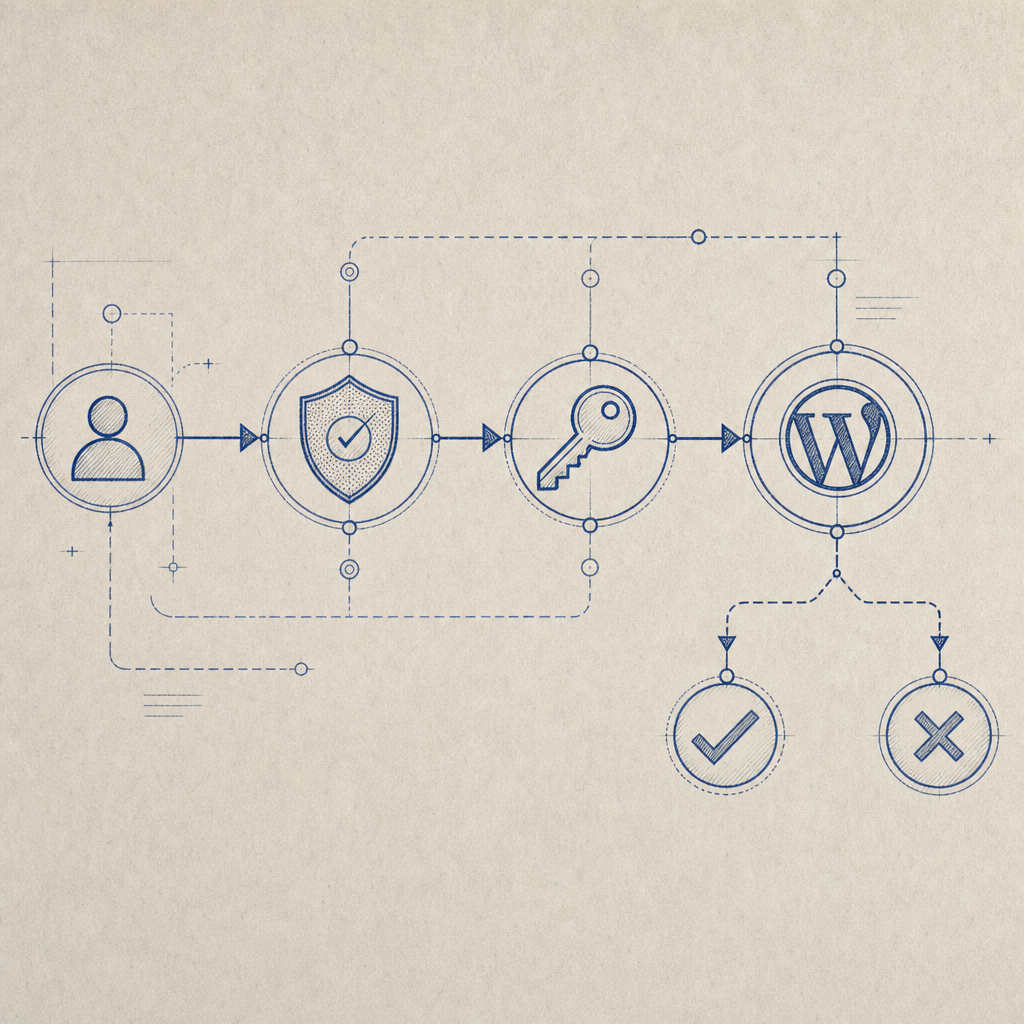
Why WordPress login needs more than a password field
WordPress login pages are predictable, which is convenient for users and convenient for attackers. Automated tools can repeatedly test username/password combinations, probe wp-login.php, and hammer XML-RPC or related endpoints. If the site has weak passwords, recycled credentials, or a public-facing admin area, the risk increases quickly.
A captcha helps by inserting a verification step before WordPress processes the login attempt. That does three useful things:
- It raises the cost of automation.
- It filters out a large share of non-human traffic.
- It gives your security stack an additional signal before authentication.
That said, not every captcha behaves the same way. Some are more intrusive, some depend on third-party risk scoring, and some are easier to theme or localize. If your audience is global, it also helps to choose a solution with broad language support; CaptchaLa provides 8 UI languages, which can reduce friction for multilingual sites.
A good rule of thumb: protect the login form, but keep recovery flows and accessibility in mind. That means no dead ends for users who fail the check, and no assumptions that every visitor is on the same browser, device, or network.
Choose the integration style that fits your site
There are three common ways to add captcha to WordPress login, and the right one depends on how much customization you need.
| Approach | Where it fits | Pros | Tradeoffs |
|---|---|---|---|
| Plugin-based | Most sites | Fast setup, minimal code | Less control over validation details |
| Theme/plugin custom code | Custom workflows | Flexible, can fit existing auth logic | Requires PHP and testing |
| External challenge + server validation | Security-focused sites | Clear control over token verification | Needs backend integration |
If you already run custom login logic, the cleanest pattern is usually: render a challenge on the login page, receive a pass token, then validate it on your server before allowing authentication to proceed.
CaptchaLa’s flow is built around that idea. On the client side, you load the challenge component from the CDN:
<!-- English comments only -->
<script src="https://cdn.captcha-cdn.net/captchala-loader.js"></script>
Then, after the user completes the challenge, your backend validates the pass token with a server-to-server request:
POST https://apiv1.captcha.la/v1/validate
Headers:
  X-App-Key: your_app_key
  X-App-Secret: your_app_secret
Body:
  {
    "pass_token": "token_from_client",
    "client_ip": "203.0.113.10"
  }
That validation step matters because the browser should not be the source of truth. Your WordPress backend should decide whether to continue to the login flow.
If you are evaluating alternatives, it is reasonable to compare the user experience and implementation model against reCAPTCHA, hCaptcha, and Cloudflare Turnstile. Each has its own strengths: reCAPTCHA is familiar to many teams, hCaptcha is often chosen for its privacy posture and monetization model, and Turnstile aims for lower-friction verification. The main question is how each fits your operational preferences, data handling requirements, and developer workflow.
A practical WordPress implementation pattern
There are many ways to wire this up, but the structure is usually the same: show the challenge, submit the token with the login form, validate it server-side, and only then allow authentication.
Here is a simplified implementation outline:
- Enqueue the captcha loader on the login page.
- Render the challenge widget near the username/password fields.
- Capture the returned pass token in a hidden field.
- On form submission, validate the token with your backend.
- If validation fails, stop login and show an error.
- If validation passes, continue with WordPress authentication.
A minimal plugin-style sketch might look like this:
<?php
// Add the loader script to the WordPress login page
add_action('login_enqueue_scripts', function () {
    wp_enqueue_script(
        'captchala-loader',
        'https://cdn.captcha-cdn.net/captchala-loader.js',
        array(),
        null,
        true
    );
});

// Validate captcha before login proceeds
add_filter('authenticate', function ($user, $username, $password) {
    if (is_wp_error($user)) {
        return $user;
    }

    $pass_token = isset($_POST['pass_token']) ? sanitize_text_field($_POST['pass_token']) : '';
    $client_ip  = $_SERVER['REMOTE_ADDR'] ?? '';

    if (!$pass_token) {
        return new WP_Error('captcha_missing', 'Please complete the verification check.');
    }

    $response = wp_remote_post('https://apiv1.captcha.la/v1/validate', array(
        'headers' => array(
            'X-App-Key'   => 'your_app_key',
            'X-App-Secret'=> 'your_app_secret',
            'Content-Type' => 'application/json',
        ),
        'body' => wp_json_encode(array(
            'pass_token' => $pass_token,
            'client_ip'  => $client_ip,
        )),
        'timeout' => 10,
    ));

    if (is_wp_error($response)) {
        return new WP_Error('captcha_error', 'Verification service unavailable.');
    }

    $status = wp_remote_retrieve_response_code($response);
    if ($status !== 200) {
        return new WP_Error('captcha_failed', 'Verification failed. Please try again.');
    }

    return $user;
}, 30, 3);
?>
This is intentionally simplified, but it shows the sequence. In a real plugin, you would also add nonce protection, better error handling, and possibly rate limiting.
CaptchaLa also supports server-token issuance via POST https://apiv1.captcha.la/v1/server/challenge/issue, which is useful when you want the backend to initiate or coordinate the challenge flow rather than relying entirely on client-side logic.
What to watch for after deployment
The most common mistake after adding captcha to a WordPress login is overconfidence. A captcha is a control, not a complete defense plan. You still want strong passwords, MFA for admin users, rate limiting, and logging.
Here are the technical details worth checking after launch:
Validation latency
Keep the server-side verification request fast. If your login path stalls, users will blame the site, not the attacker.Failure mode
Decide what happens if the captcha service is unavailable. For admin logins, some teams prefer fail-closed; for public member sites, others prefer a carefully limited fail-open path with alerts.IP handling
Pass the client IP consistently so the validation signal is accurate. If you are behind a proxy or CDN, make sure you extract the real visitor IP correctly.Accessibility and localization
Check keyboard navigation, screen reader behavior, and language selection. A captcha that works technically but frustrates legitimate users can still create support tickets.Telemetry
Monitor success rates, challenge completion rates, and blocked attempts. A sudden spike in failures can indicate attack traffic or an integration bug.

If you need predictable pricing as traffic grows, it can help to plan ahead. CaptchaLa’s published tiers include a free tier at 1,000 monthly requests, Pro in the 50K–200K range, and Business at 1M. That kind of sizing is especially relevant if your login page serves a membership community, SaaS admin panel, or internal portal where usage can spike unexpectedly.
Also note the data model: CaptchaLa uses first-party data only. For teams that care about privacy posture and vendor surface area, that is often part of the evaluation alongside UX and implementation effort.
When to use WordPress plugins vs. custom code
If your site is straightforward, a plugin can be the fastest route. If you run a custom login form, a headless front end, or a membership workflow with special rules, custom code is usually cleaner.
A plugin makes sense when:
- you want minimal maintenance,
- your login page is standard WordPress,
- and your team prefers configuration over development.
Custom integration makes sense when:
- you need to validate only certain roles or user types,
- you already have custom authentication hooks,
- or you want tighter control over failure handling and analytics.
For teams building outside plain PHP, CaptchaLa also provides native SDKs for Web, iOS, Android, Flutter, and Electron, plus server SDKs for PHP and Go. That matters if WordPress is only one piece of a larger product and you want a consistent challenge and validation model across platforms. The docs at docs are the best place to map those options to your setup.
If you are comparing tools, also look beyond the logo list and ask practical questions: How does the token get validated? What is the fallback behavior? How much can you localize the UI? Does the vendor support the deployment shape you actually run?
Where to go next: review the implementation details in the docs or check the current pricing if you are estimating login traffic and rollout scope.