
Adding CAPTCHA to your Shopify contact form is a straightforward way to block spam bots and reduce fake submissions. By integrating a CAPTCHA solution, you ensure that only human users can submit inquiries, protecting your customer data and saving your team time. This article explains why you should add a CAPTCHA to your Shopify contact form, offers detailed methods for implementation, and compares popular CAPTCHA providers, including an overview of using CaptchaLa.
Why Add CAPTCHA to Shopify Contact Forms?
Spam is a common headache for Shopify store owners. Automated bots continuously target contact forms to flood inboxes with irrelevant or malicious messages, potentially exposing your store to phishing and performance issues. Using CAPTCHA on these forms serves as a gatekeeper, requiring users to complete a challenge that’s easy for humans but tough for bots.
Besides reducing unwanted emails, CAPTCHA also helps maintain data quality and enhances security by detecting fraudulent submissions. Especially if you run promotions or collect sensitive customer info, CAPTCHA is an essential layer of defense without compromising user experience when implemented properly.
How to Add CAPTCHA to Shopify Contact Form
Shopify’s standard contact form doesn’t include CAPTCHA functionality by default, but you can add it manually using custom code or apps. Here are general approaches to consider:
1. Use a Custom CAPTCHA Script
You can insert a CAPTCHA widget directly into your Shopify contact form by modifying the form’s Liquid template. Many CAPTCHA providers, including CaptchaLa, offer lightweight JavaScript loaders and server-side validation APIs.
Step-by-step example with CaptchaLa:
Sign up for CaptchaLa and obtain your site key and secret.
Include the CaptchaLa loader script in your theme’s
<head>section or at the bottom ofcontact.liquid:liquid<script src="https://cdn.captcha-cdn.net/captchala-loader.js"></script>Add the CAPTCHA widget placeholder inside the form:
liquid<div id="captchala-widget"></div>Initialize the CAPTCHA on page load in your custom JavaScript:
js// Initialize CaptchaLa widget CaptchaLa.init({ element: '#captchala-widget', siteKey: 'your-site-key-here' });On form submission, send the CAPTCHA token along with the form data to your server or Shopify’s webhook.
Verify the token using CaptchaLa’s validation API:
httpPOST https://apiv1.captcha.la/v1/validate Headers: X-App-Key, X-App-Secret Body: { "pass_token": "<token-from-client>", "client_ip": "<user-ip>" }Only process the contact form message if the CAPTCHA validation passes.
2. Use Shopify Apps Integrating CAPTCHA
If you prefer no-code integration, several Shopify App Store apps add CAPTCHA to your contact forms automatically. These often support Google reCAPTCHA or hCaptcha, and some might allow custom provider integration:
- reCAPTCHA apps: Well-established, widely supported.
- hCaptcha apps: Known for privacy focus.
- Apps offering flexible CAPTCHA options: May include Invisible CAPTCHA, math challenges, or custom solutions.
Selecting an app depends on your requirements for usability, privacy, and customization.
3. Shopify Plus and Advanced Customization
For Shopify Plus users, more advanced backend scripts and API-based customizations are possible—such as server-side token verification triggered from Shopify Flow or external servers. CaptchaLa’s SDKs for PHP, Go, and other languages support this kind of integration.

Comparing Popular CAPTCHA Providers for Shopify
| Feature | CaptchaLa | Google reCAPTCHA | hCaptcha | Cloudflare Turnstile |
|---|---|---|---|---|
| Free tier | 1000/month | Unlimited | Unlimited | Unlimited |
| Privacy | First-party data only | Collects Google user data | Privacy-focused | Privacy-focused |
| SDKs & Languages | JS, Vue, React, iOS, Android + server SDKs | JS, limited mobile SDKs | JS + Mobile SDKs | JS only |
| Integration complexity | Simple loader + server validation | Easy with Google IDs | Easy with site key | Easy with site key |
| Pricing tiers | Pro: 50K–200K, Business: 1M+ | Free, paid versions for enterprise | Free and paid options | Included with Cloudflare plan |
| UI Language Support | 8 UI languages | Limited to supported Google locales | Several languages | Some multilingual support |
| Customization | Customizable challenge types | Invisible CAPTCHA available | Custom widgets possible | Invisible CAPTCHA |
This comparison illustrates that CaptchaLa provides a good balance of privacy, technical flexibility, and multiple SDK options, especially for developers who want full control.
Tips for Effective CAPTCHA on Shopify Contact Forms
To ensure users aren’t frustrated while staying secure:
- Choose an invisible or user-friendly CAPTCHA to avoid annoying challenges.
- Localize the CAPTCHA UI if your store targets multiple languages (CaptchaLa supports 8 UI languages).
- Test on all devices and browsers to confirm the CAPTCHA loads and completes smoothly.
- Monitor form submission success and fallback rates, tuning difficulty to balance security and user experience.
- Combine CAPTCHA with other anti-spam techniques like honeypot fields or rate-limiting for layered defense.
Conclusion
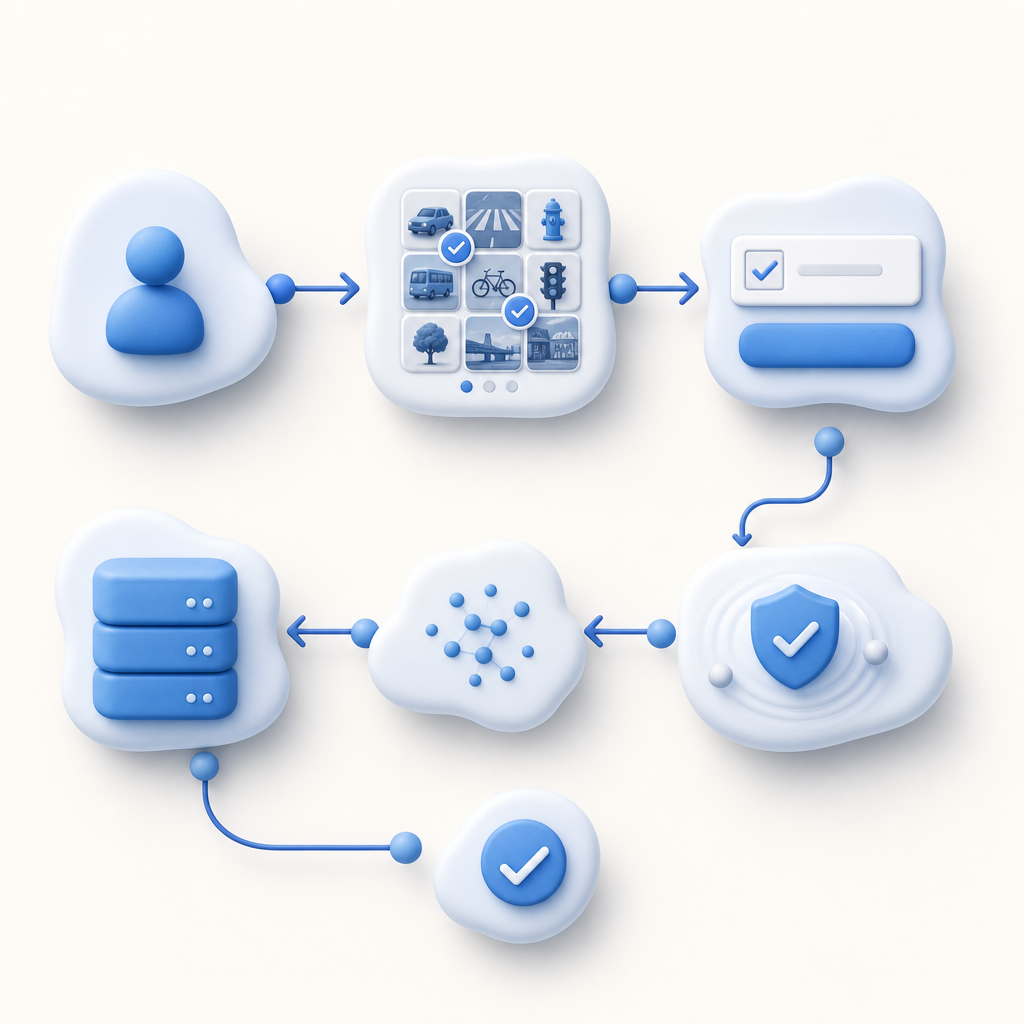
Adding CAPTCHA to your Shopify contact form is crucial for blocking spam and protecting your customers’ communications. Whether you implement a custom solution using CaptchaLa with its versatile SDKs and privacy-conscious approach, or choose popular alternatives like Google reCAPTCHA or hCaptcha via apps, the key is a smooth integration that doesn’t disrupt user experience.
With step-by-step integration examples and a comparative overview, you now have the tools to pick and add CAPTCHA effectively. For full technical details, SDK downloads, and pricing plans, visit CaptchaLa’s documentation and pricing page.
Ready to secure your Shopify contact forms? Explore CaptchaLa’s options, get set up today, and minimize spam with confidence.