
Adding captcha on WordPress usually means protecting a few high-risk entry points first: login, registration, password reset, comments, and contact forms. If you do it well, you reduce spam and automated abuse without turning every visitor into a puzzle solver. The key is to place verification where bots actually cause damage, and to choose a solution that fits your stack and traffic patterns.
For most WordPress sites, that means treating captcha as one layer in a broader defense plan: rate limits, strong password policy, honeypot fields, and server-side verification. A modern CAPTCHA should be fast, accessible, and simple to validate on your backend.
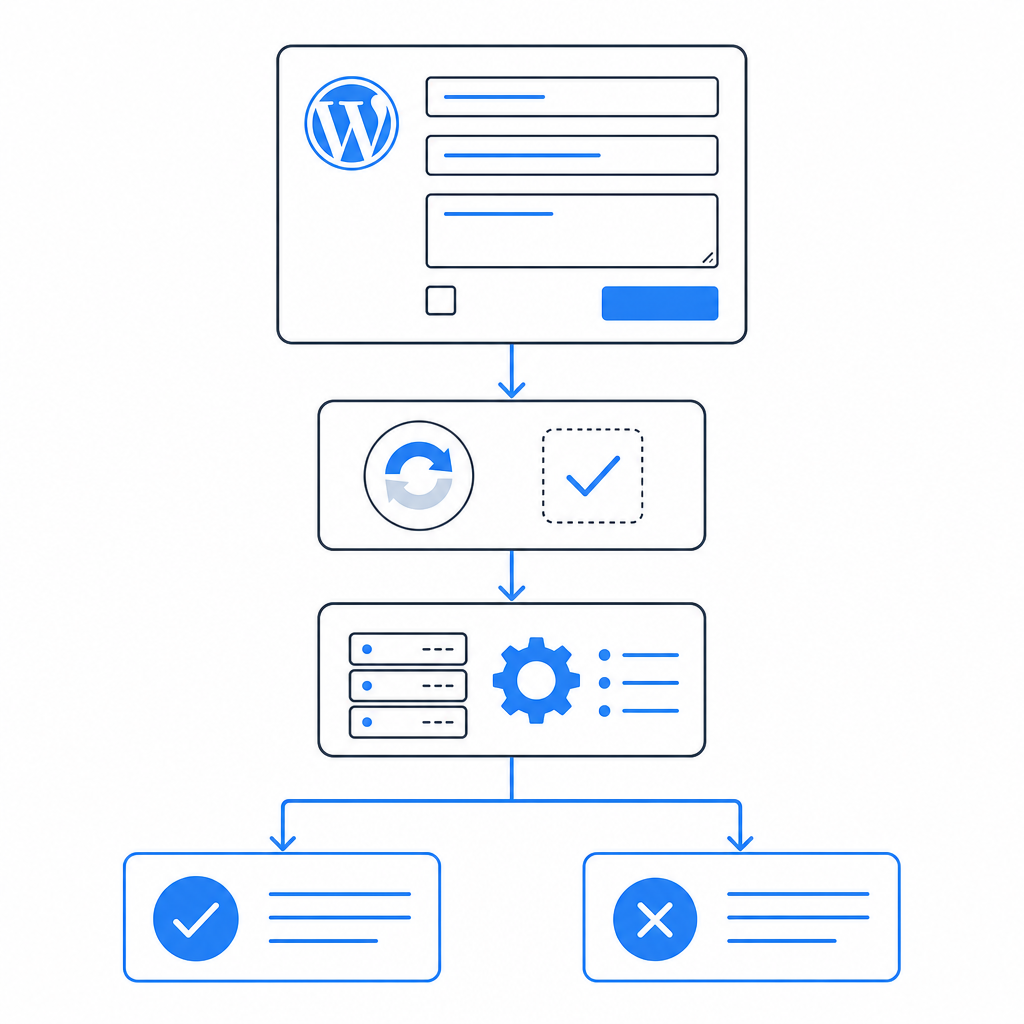
What “adding captcha” should mean on WordPress
If your first thought is the login page, you’re on the right track, but don’t stop there. WordPress sites typically attract automated traffic in a few predictable places:
- Login attempts
- Registration forms
- Password reset requests
- Comment forms
- WooCommerce checkout or account creation
- Contact forms powered by plugins like Contact Form 7, WPForms, or Gravity Forms
The implementation pattern is the same whether you use a plugin or custom code: a frontend challenge loads, the user completes it, and your server verifies the pass token before allowing the action.
The main decision is whether to use a plugin that handles most of this for you or to wire the verification into custom forms. If you maintain a custom theme, headless frontend, or tightly controlled form flow, a direct integration gives you more control. If you want a quick win, a plugin is easier.
A practical way to think about the tradeoffs:
| Option | Setup effort | Control | Typical use case |
|---|---|---|---|
| WordPress plugin | Low | Medium | Standard login, register, contact forms |
| Custom theme integration | Medium | High | Bespoke forms and workflows |
| Server-side API integration | Medium | Very high | Security-sensitive actions and custom apps |
Cloudflare Turnstile, reCAPTCHA, and hCaptcha are all common choices here. They differ in how they balance friction, privacy posture, and ecosystem fit. If you’re already using a broader bot-defense platform such as CaptchaLa, you may prefer a setup that is easy to validate server-side and works across web and mobile surfaces, not just WordPress.

The safest implementation pattern on WordPress
The mistake many site owners make is checking only on the client side. That helps user experience, but it does not stop forged requests. You want the browser to collect a pass token, then your WordPress backend to validate it before the request is accepted.
A clean flow looks like this:
- Render the challenge widget on the page.
- On completion, receive a
pass_token. - Send the token to your server along with the client IP if your policy uses it.
- Your backend calls the validation endpoint.
- Accept the form submission only if validation succeeds.
For CaptchaLa, validation is a straightforward POST request to:
POST https://apiv1.captcha.la/v1/validateThe body contains:
{
  "pass_token": "token_from_client",
  "client_ip": "203.0.113.42"
}
And the request includes:
X-App-KeyX-App-Secret
That server-side step matters because it keeps the decision on your trusted infrastructure. If you’re working in a plugin or custom WordPress code, this is the point where you reject spam, rate-limit repeat failures, and log suspicious activity.
A simple integration shape
If you’re building a custom WordPress handler, the logic is usually:
<?php
// English comments only

function captchala_validate_request($pass_token, $client_ip) {
    $response = wp_remote_post('https://apiv1.captcha.la/v1/validate', array(
        'headers' => array(
            'X-App-Key'    => defined('CAPTCHALA_APP_KEY') ? CAPTCHALA_APP_KEY : '',
            'X-App-Secret' => defined('CAPTCHALA_APP_SECRET') ? CAPTCHALA_APP_SECRET : '',
            'Content-Type'  => 'application/json',
        ),
        'body' => wp_json_encode(array(
            'pass_token' => $pass_token,
            'client_ip'  => $client_ip,
        )),
        'timeout' => 5,
    ));

    if (is_wp_error($response)) {
        return false;
    }

    $body = json_decode(wp_remote_retrieve_body($response), true);

    return !empty($body['success']);
}
That is the core pattern, whether the request comes from a login form, a checkout form, or a custom lead-gen form. If you prefer a ready-made integration path, the docs are the best starting point.
Where captcha should live in your WordPress stack
WordPress sites vary a lot, so the right placement is not “everywhere.” Put verification where abuse is likely and user frustration is acceptable.
Good places to add it
/wp-login.phpand registration- Password reset flows
- Anonymous comment submissions
- High-value form posts
- Account creation inside WooCommerce
- API-backed custom forms that create records or send messages
Places to be careful
- Search boxes
- Newsletter signup forms with very low abuse rates
- Any flow used by accessibility-sensitive audiences, unless your challenge is extremely lightweight
- Internal admin tools used by trusted staff
For multilingual sites, the user experience matters. CaptchaLa supports 8 UI languages, which helps when your audience is not primarily English-speaking. That can reduce support tickets and cut down on the “what am I looking at?” factor that some older captcha systems create.
If you need a backend-issued challenge for a more controlled flow, CaptchaLa also supports issuing server tokens via:
POST https://apiv1.captcha.la/v1/server/challenge/issueThat is useful when the backend decides a request needs an extra step, rather than always showing the same challenge up front.
WordPress itself does not care which provider you use as long as your form handler can verify the token before processing the action. So the real question is how much control you want over the enforcement layer and how much code you’re comfortable maintaining.
Choosing between providers without overcomplicating it
There is no single captcha provider that fits every WordPress site equally well. The choice often comes down to policy and architecture.
- reCAPTCHA is familiar and widely supported.
- hCaptcha is also common, with a privacy-oriented positioning.
- Cloudflare Turnstile is attractive if you’re already in the Cloudflare ecosystem and want a low-friction challenge model.
If your site extends beyond WordPress into mobile apps, desktop apps, or custom web apps, it can help to choose a provider with broad SDK support. CaptchaLa offers native SDKs for Web, iOS, Android, Flutter, and Electron, plus server SDKs for PHP and Go. That makes it easier to keep one bot-defense policy across channels instead of stitching together different products for each frontend.
Some practical checkpoints before you deploy:
- Confirm the form handler verifies tokens server-side, not just in JavaScript.
- Decide which actions need protection and which do not.
- Test the flow on mobile and desktop.
- Check what happens when the validation API is temporarily unavailable.
- Add logging for repeated failures or suspicious IP patterns.
- Make sure your theme or plugin does not cache a challenge page in a way that breaks tokens.
If you prefer predictable pricing as traffic grows, it helps to plan ahead. CaptchaLa’s free tier starts at 1,000 requests per month, with Pro tiers in the 50K–200K range and Business plans around 1M. That range is useful for sites that want to start small and scale without reworking the integration later. See pricing for the current tiers.
A WordPress rollout plan that won’t annoy users
Start small. Protect the most abused endpoint first, then expand if you see automated traffic moving elsewhere. A good rollout is usually:
- Protect login and registration.
- Add coverage to password reset.
- Add comment protection if your site gets spam.
- Extend to contact or lead forms.
- Review logs and tune thresholds.
- Decide whether to keep challenges visible all the time or only under risk conditions.
That last step is important. The best captcha experience is often the one users barely notice. If you only show a challenge when the request looks suspicious, you preserve more of the normal experience for legitimate visitors.
A final note on data handling: if you care about minimizing exposure, it’s worth checking how your provider handles data collection and retention. Some teams prefer first-party data only for governance reasons, and that can be a deciding factor in procurement.
If you want to see the integration surface before you commit, start with the docs, then review CaptchaLa to see whether the workflow matches your WordPress architecture.
Where to go next: read the docs for implementation details, or check pricing if you’re planning a rollout across multiple forms or sites.